B2B-GRAPHQL-UAT-API
home
Requesting Access to Cisco Commerce Modern GraphQL APIs
This document provides step-by-step guidance for partners to request access to Cisco Commerce Modern GraphQL APIs in UAT environments via the Cisco Developer Portal.
Prerequisites
Before requesting access, ensure you have:
- A valid Cisco SSO (id.cisco.com) account
- Authorization to create or manage applications for your organization
Clarity on the environment:
- UAT – Functional and integration testing-
Step 1: Sign In to the API Page
- Click Login in the top-right corner of the API page
- Authenticate using your Cisco Production SSO credentials
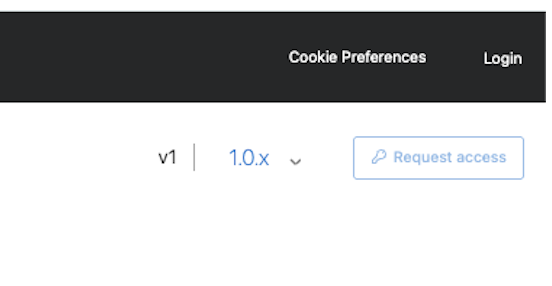
Figure 1 – Partner selects the Logic option.
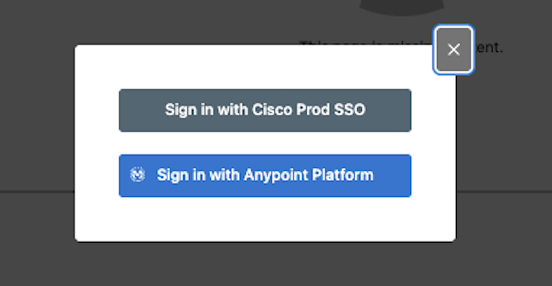
Figure 2 – Partner Logic with CISCO Prod SSO.
Step 5: Request API Access
- Once logged in, click Request Access (top-right corner)
Select:
- API Instance
- Existing Application, if available
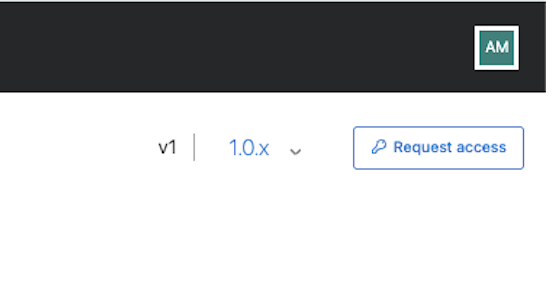
Figure 3 – Partner request access to Commerce Modern API in UAT.
Step 6: Create a New Application (If Required)
- If no application exists:
- Click Create New Application
- Provide the following:
- Application Name
- Grant Type: Client Credentials
- Click Create
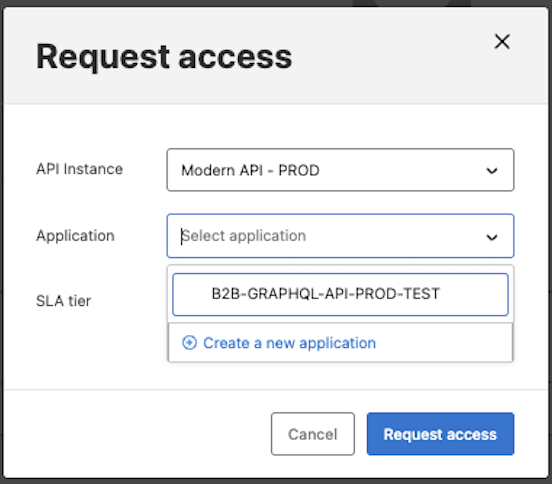
Figure 4 – Register Application: Select API Instance, Application.
Step 7: Select SLA Tier and Submit Request
- Choose the appropriate SLA Tier
- Bronze, Silver or Gold Tier (recommended for Production)
- Click Request Access
A confirmation message indicates the request was submitted successfully
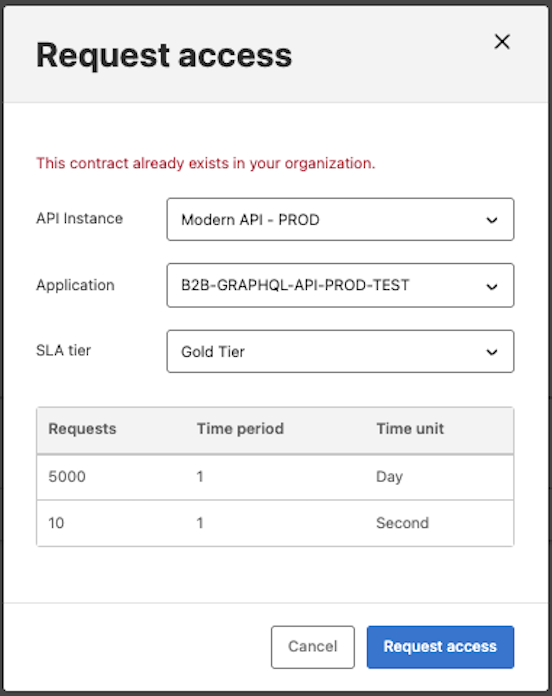
Figure 5 – Select SLA Tier and submit request.
Existing Contract Scenario
If your organization already has an approved contract, you may see the following message:
“This contract already exists in your organization.”
No additional action is required. The request will proceed using the existing contract.
Step 8: Access Approval and Viewing Credentials
Once access is approved by the GraphQL Admin Team:
- Log in to it-developer.cisco.com
- Navigate to Cisco Commerce, Commerce Modern API and Click on Appropriate environment.
- Following Step 1 and 2 from above to login.
- Select My Application
- Then, select your approved application
Retrieve:
- Client ID
- Client Secret
These credentials are required to invoke the GraphQL APIs.
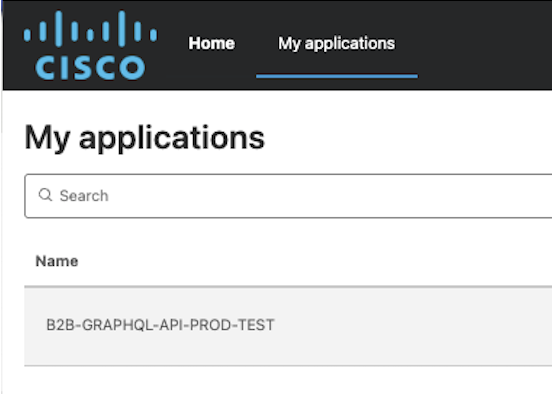
Figure 6 – Select registered application for the list.
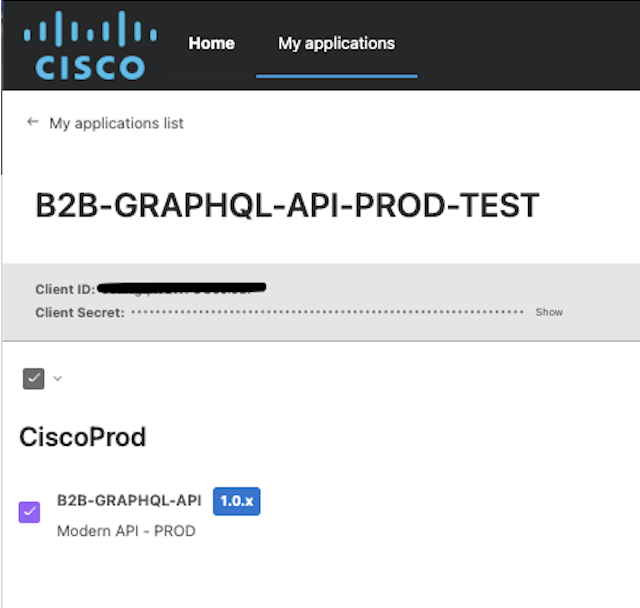
Figure 7 – Client ID, Secret to Access API.
API Metrics and Monitoring
From the application dashboard, you can monitor:
- API request volume
- Latency
- HTTP status codes
- Error percentage
This provides visibility into API usage and performance.
Support
If you experience issues requesting access or using the APIs, contact:
📧 b2bapi@cisco.com