Concur Expense Sync
Architecture
Architecture Overview
High-level Design
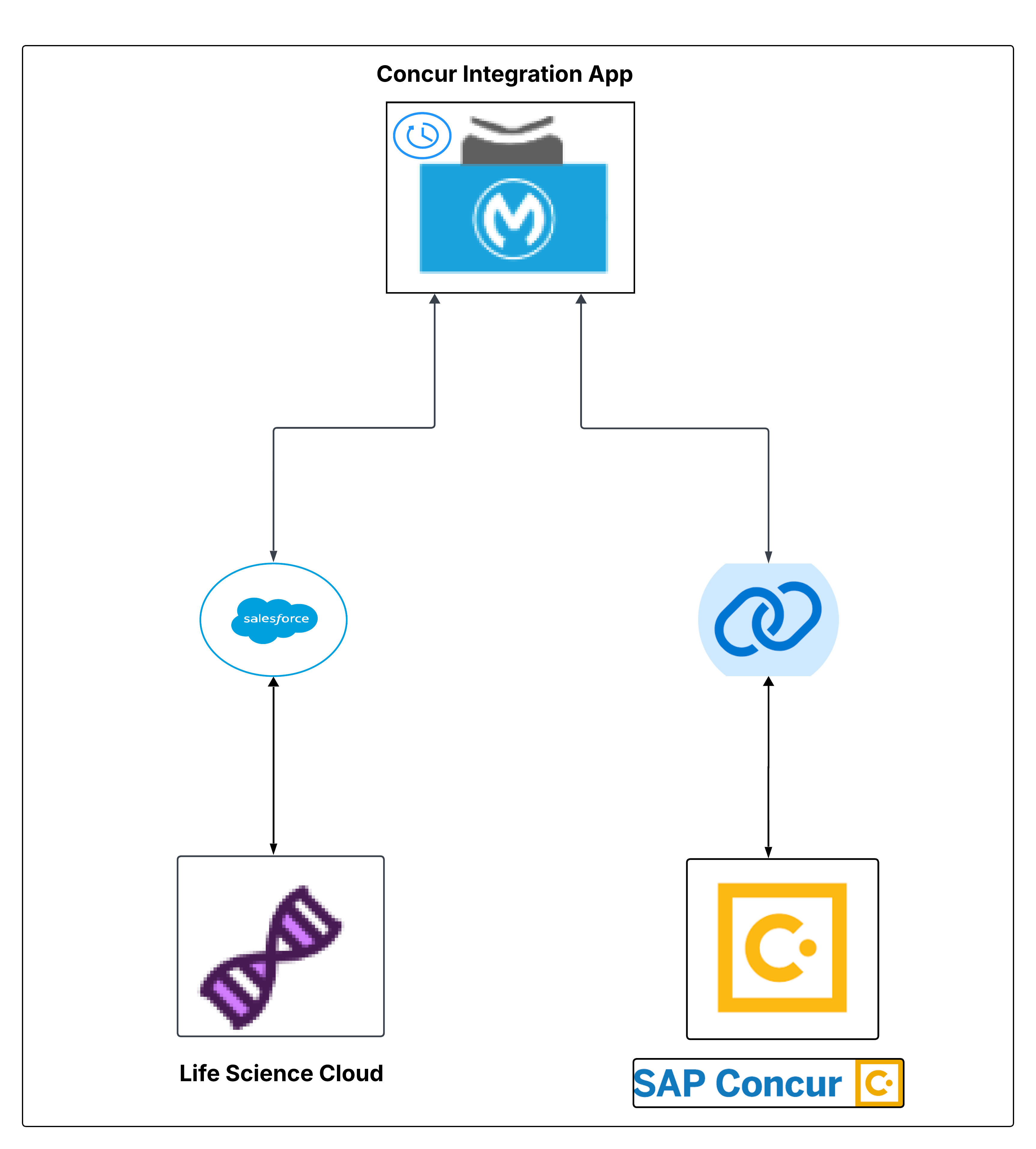
Overview
The Concur Expense Sync provides bidirectional synchronization between Salesforce and SAP Concur, orchestrated by a MuleSoft integration layer. The architecture is designed to ensure seamless data flow for expense reports and entries across both systems while maintaining data consistency and integrity.
Integration Flows
The architecture supports two primary synchronization flows:
- Salesforce to Concur: Synchronizes expense reports and entries from Salesforce to SAP Concur, including user and attendee mappings, receipt attachments, and expense entry associations.
- Concur to Salesforce: Monitors changes in SAP Concur and synchronizes updates back to Salesforce, including modifications to expense reports, entries, and handling of deleted records.
Both flows are executed on scheduled intervals, ensuring that expense data remains synchronized between the two systems while minimizing manual intervention.
Salesforce to Concur Expense Synchronization
Sequence Diagram
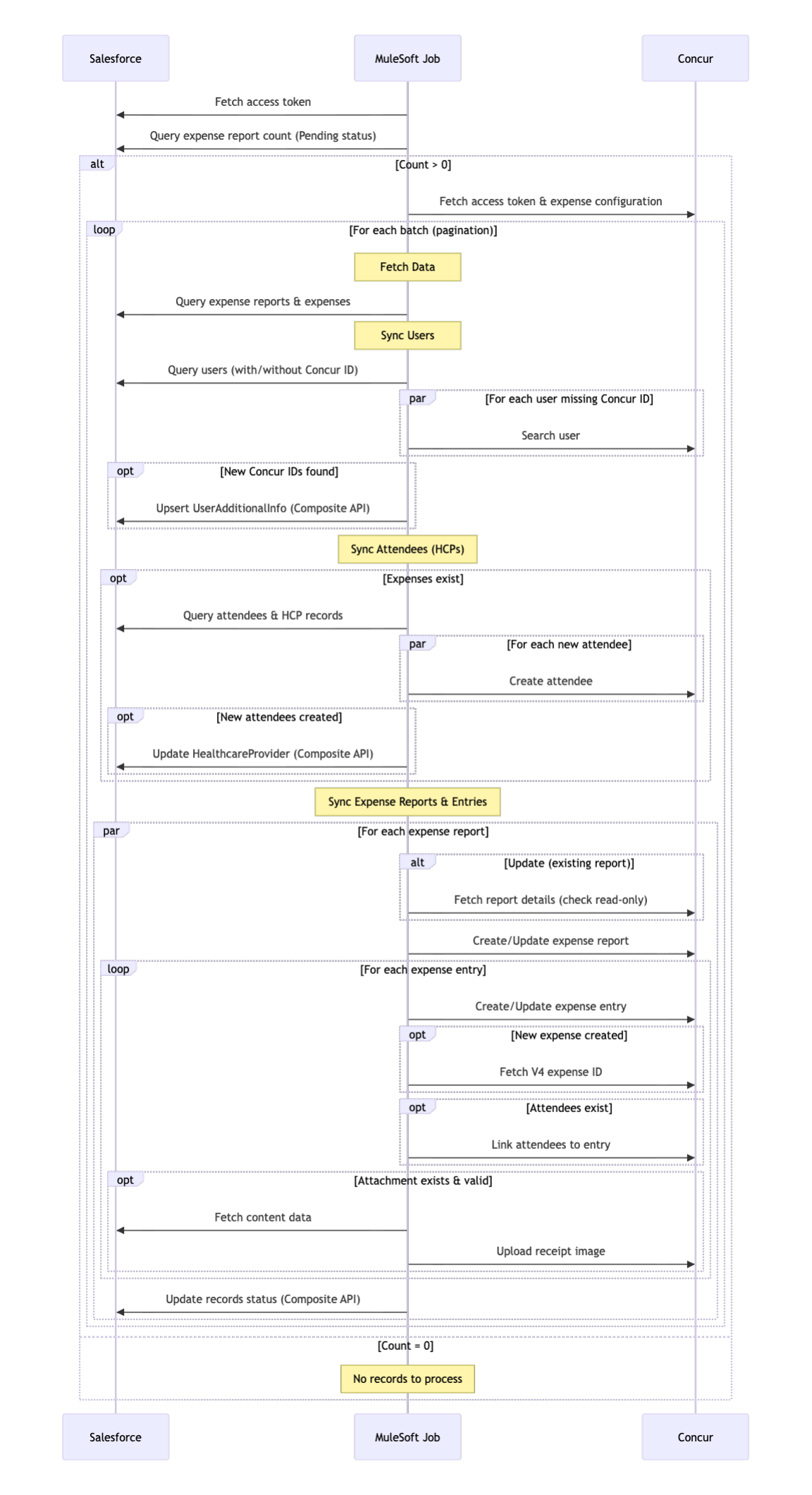
Overview
This section describes the step-by-step process for synchronizing expense reports and entries from Salesforce to Concur. The sync is performed in five main phases:
- Initial Setup
- Sync Concur Expense Reports to Salesforce
- Prepare Data for Sync
- Sync Users and Attendees (HCPs)
- Sync Expense Reports and Entries
Phase 1: Initial Setup
- Fetch access token from Salesforce.
- Retrieve the last service run timestamp, so that only records changed since the previous run are processed.
- Initialize the user cache used to map Salesforce and Concur users during the sync.
- Create an IntegrationJobRun record in Salesforce to track the job (status
In Progress). - Fetch access token from Concur.
Phase 2: Sync Concur Expense Reports to Salesforce
This phase brings expense reports that are unsubmitted or rejected from Concur into Salesforce, so they are available for the forward sync and reverse sync, and builds the user mapping needed by the later phases.
- Fetch the expense reports from Concur that are unsubmitted or rejected and were modified since the last service run. Results are returned in pages.
- For each page of results:
- Identify the distinct Concur users on the reports, skipping any already present in the user cache.
- Look up those users in Concur to get their email addresses and resolve them to Salesforce users. Add the mappings to the user cache, including any that could not be resolved.
- For matched users that do not yet have a Concur identifier stored in Salesforce, update their UserAdditionalInfo records.
- Create or update the expense reports in Salesforce for owners that exist in Salesforce, and record the synced and failed counts.
- If any report fails to save, log the failure to the LifeScience Error Log.
- Update the IntegrationJobRun record with the running summary.
- After all pages are processed, save the current run timestamp for the next run and log the final summary.
If the maximum number of pages is reached in a single run, the remaining reports are processed in the next scheduled run.
Phase 3: Prepare Data for Sync
- Query Salesforce to get the count of expense reports that have a status of
Pendingand are ready for sync. - If the count is 0, skip the remaining sync as there are no records to process.
- If the count is greater than 0, fetch the expense configuration from Concur.
- Query Salesforce to retrieve the
Pendingexpense reports and expenses to be synced.
Phase 4: Sync Users and Attendees (HCPs)
Step 1: Sync Users
- Resolve the Concur IDs for the report owners from the user cache populated during the prerequisite sync.
- For any user not already in the cache, query Salesforce to identify users with/without a Concur ID.
- For each user still missing a Concur ID, search for the corresponding Concur user by using the user's email address or other identifier.
- Concur returns the user data including the Concur User ID if a matching user is found.
- If new Concur IDs are found, upsert UserAdditionalInfo records in Salesforce to establish the mapping between Salesforce and Concur users.
Step 2: Sync Attendees (HCPs)
- If expenses exist, query Salesforce for attendees and HCP (Healthcare Provider) records.
- For each new attendee (parallel), create the attendee record in Concur.
- Concur returns the newly created Concur Attendee ID.
- If new attendees were created, update HealthcareProvider records in Salesforce using the Composite API to maintain the mapping.
Phase 5: Sync Expense Reports and Entries
For each expense report (parallel processing):
- If updating an existing report, fetch report details from Concur to check if it is read-only.
- Create or update the expense report in Concur.
- Concur returns the Concur Expense Report ID.
- For each expense entry associated with the report (loop):
- Create or update the expense entry in Concur.
- Concur returns the Concur Expense Entry ID.
- If a new expense entry was created, fetch the V4 expense ID from Concur.
- If attendees exist for the expense entry, link the attendees to the entry in Concur.
- If an attachment exists and is valid, fetch the content data from Salesforce.
- Upload the receipt image to Concur as an attachment for the expense entry.
- Update records status in Salesforce using the Composite API to store Concur IDs and update the status from
PendingtoCompleted.
Concur to Salesforce Expense Synchronization
Sequence Diagram
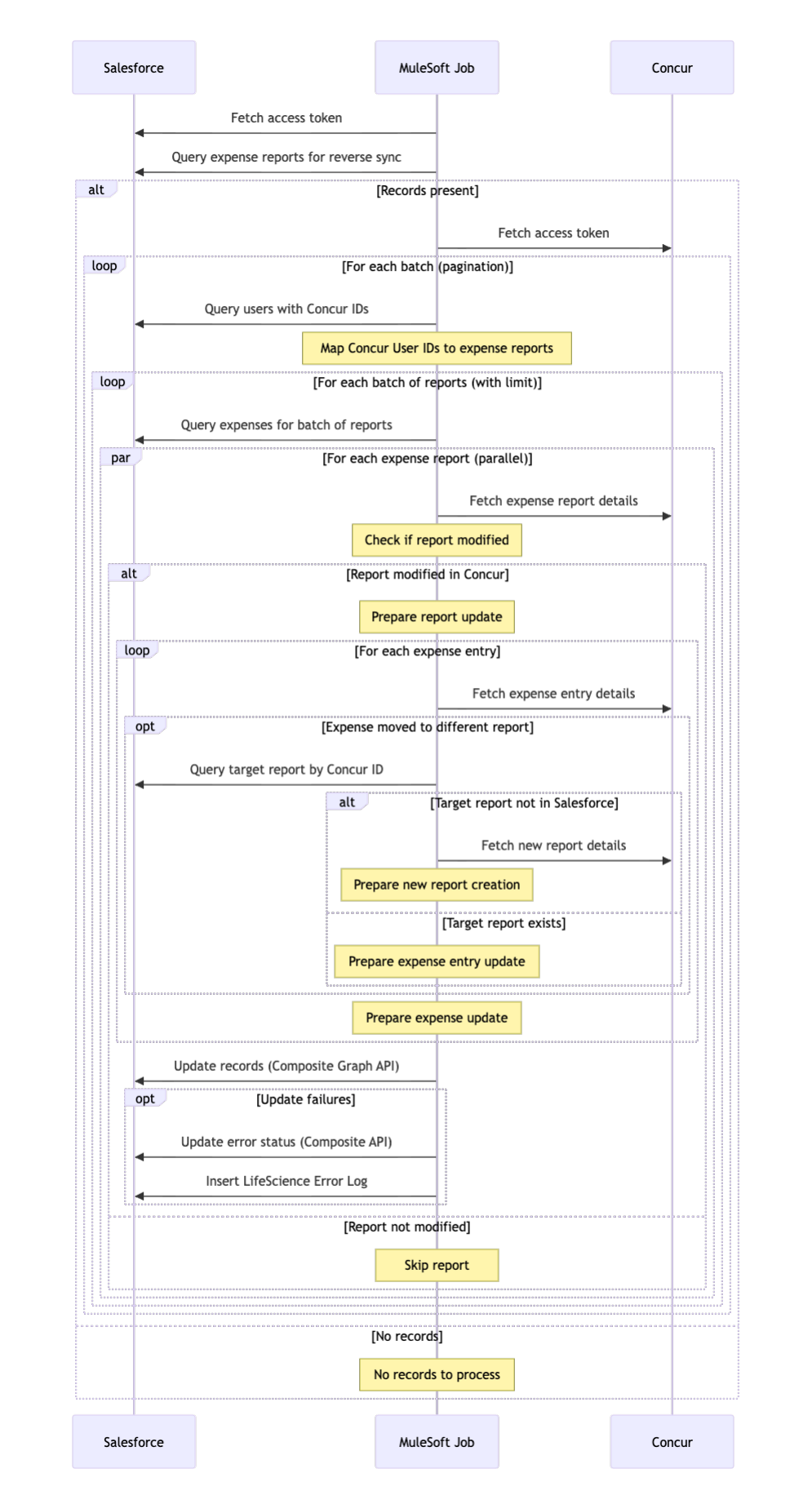
Overview
The step-by-step process for synchronizing expense reports and entries from Concur to Salesforce. The reverse sync job checks for changes made in Concur that need to be reflected in Salesforce. The sync is performed in four main phases:
- Initial Setup and Data Retrieval
- Map Users to Expense Reports
- Check and Process Modified Reports
- Handle Update Failures
Phase 1: Initial Setup and Data Retrieval
- Fetch access token from Salesforce.
- Query Salesforce to retrieve expense reports for reverse sync.
- If records are present, proceed with sync. If no records exist, skip the sync process (No records to process).
- If proceeding, fetch access token from Concur.
Phase 2: Map Users to Expense Reports
For each batch (pagination):
- Query Salesforce to retrieve users with Concur User IDs.
- Salesforce returns users with Concur User IDs.
- Map Concur User IDs to expense reports to enrich the report data with user information.
Phase 3: Check and Process Modified Reports
For each batch of reports (with limit):
- Query Salesforce to retrieve expenses for the batch of reports.
- For each expense report (parallel processing):
- Fetch expense report details from Concur.
- Check if the report has been modified in Concur.
- If the report is modified in Concur, prepare the report update:
- For each expense entry (loop), fetch expense entry details from Concur.
- If an expense entry was moved to a different report:
- Query Salesforce for the target report by Concur ID.
- If the target report does not exist in Salesforce: Fetch new report details from Concur. Prepare the report for creation.
- If the target report exists in Salesforce, prepare the expense entry update.
- After processing all expense entries, prepare the expense update.
- Update records in Salesforce using the Composite Graph API.
- If the report is not modified, skip the report.
Phase 4: Handle Update Failures
- If update failures occur during Phase 3, update error status in Salesforce using the Composite API.
- Insert LifeScience Error Log records in Salesforce to capture the failure details.